Reporting a definition into the layout and into Excel

Contents
Once a definition is defined, you can drag and drop its matrix (i.e. Compensation matrix, Spillover Matrix or Unmixing Matrix):
•onto a layout
•into a text box
•into an integrated spreadsheet
•into Microsoft Excel
The example below show how to display the raw matrix data in text boxes and Excel (Figure 9.67).
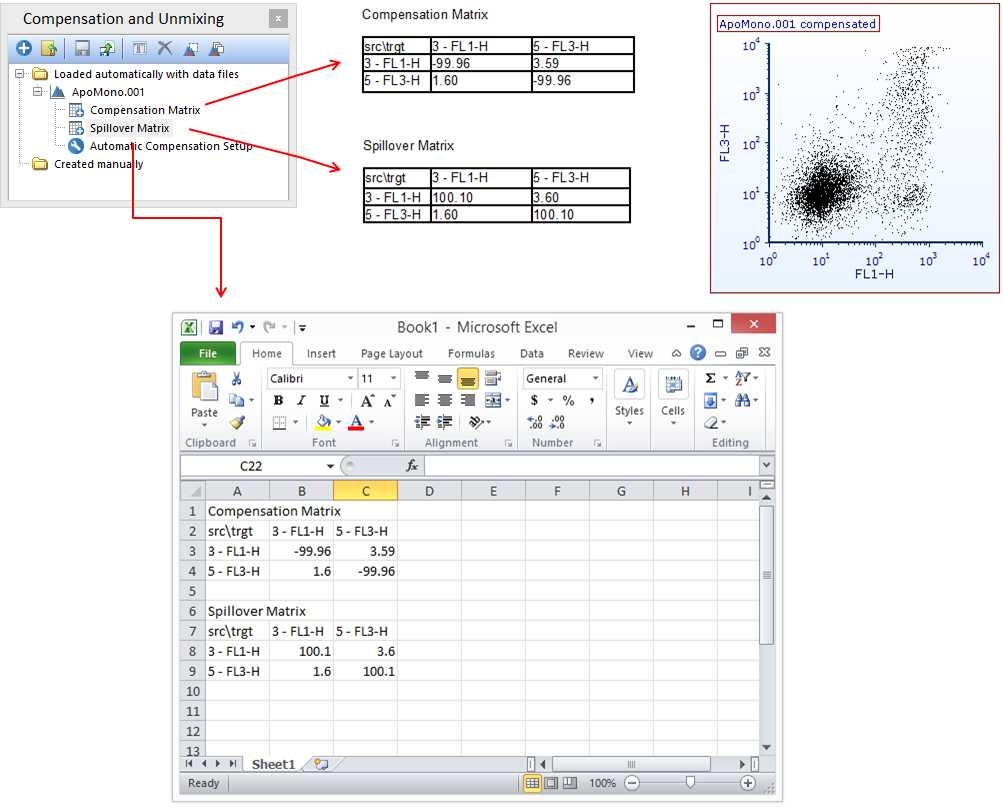
Figure 9.67- Drag and drop a compensation matrix from the Compensation and Unmixing window onto a layout, into a text box, or directly into Microsoft Excel to display the values.
A definition can also be inserted into a text box or into an integrated spreadsheet by right clicking into the text box/Spreadsheet and by selecting Insert→Insert Compensation Matrix or Insert→Insert Unmixing Table (Figure 9.68).
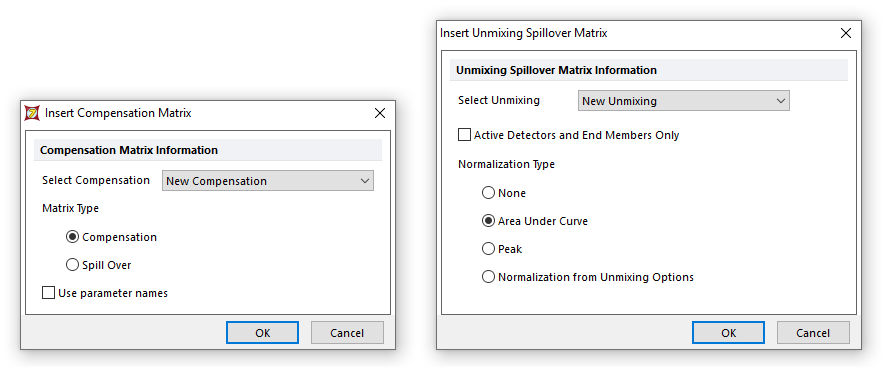
Figure 9.68- Right click in a text box or spreadsheet cell to insert compensation or (4) unmixing matrices. When inserting compensation matrices, choose a specific transformation (1, 2) or a specific plot (1, 3).
•When a Compensation Matrix is inserted:
oThe Matrix can be sourced from specific compensation or a plot of interest ( in the figure above).
oWhen the source is a Compensation Matrix, the Compensation Matrix of interest can be selected from the Select Transformation drop-down menu ( in the figure above). The Matrix Type (i.e. either the Compensation matrix or the Spillover matrix) can also be selected. Parameter names can also be used as column and row headers by checking the Use parameter names box.
oWhen the source is a plot, the plot of interest can be selected from the Data Source category (on the left in figure  above). The Matrix Type (i.e. either the Compensation matrix or the Spillover matrix) can also be selected. Parameter names can also be used as column and row headers by checking the Use parameter names box.
•When an Unmixing Matrix is inserted ( in the figure above):
oThe Unmixing Matrix of interest can be selected from the Select Transformation drop-down menu.
oNormalization Type can also be selected:
▪None = no normalization
▪Area Under Curve = the Area Under the Curve is normalized to 1
▪Peak = the highest peak is normalized to 1
▪Normalization from the Unmixing Options = the setting selected in the Unmixing Options of the Automatic Unmixing Setup will be used
oThe Active Detectors and End members Only check box allows you to only report the active End Members (i.e. the columns) and the active detectors (i.e. the rows) of the unmixing matrix in the resulting table.