Aligning Objects

Contents
To align multiple items, first select the objects you wish to align, and then go to Home→Editing→Align. This will bring a list of the alignment tools that can be used to align your selected objects. (Figure 4.40). Objects are aligned with respect to the first item selected. For example, if you select several items, use the Home→Editing→Align→Align Top command, the tops of all the items will be placed in the same position as the first selected item.
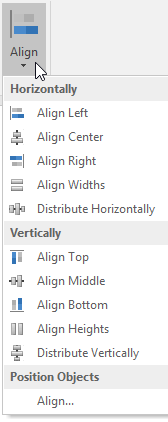
Figure 4.40 Align Menu
The Distribute Equally items ensure that there is an equal distance, horizontally or vertically, between all the selected objects.
To make multiple objects the same size:
1. Select the object(s) you wish to resize.
2. Cmd + Click on the objects to be re-sized.
3. Use both Home→Editing→Align→Align Widths and Home→Editing→Align→Align Heights commands. All objects will be re-sized to the dimensions of the first object you selected.