Creating Alerts

Contents
To create an Alert:
1.Click on the Quality→Alerts→Alerts command  to bring up the dockable Alerts window.
2.Click  to add a new alert.
3.Give the New Alert a unique name by clicking the  icon. Alternatively, right-click on the step and select Rename, or highlight the step and press F2.
4.Click on the alert name in the list so that it is highlighted.
5.Resize the Alerts window or make sure that the Alerts window is docked to the left or right of the screen, so that all panels of the window are visible (Figure 10.15).
6.The three areas of the Alerts window are the: Alert List (top), Alert Formula Editor (middle), and Alert Message (bottom). The list and formula areas are separated by a splitter which can be moved to resize the areas.
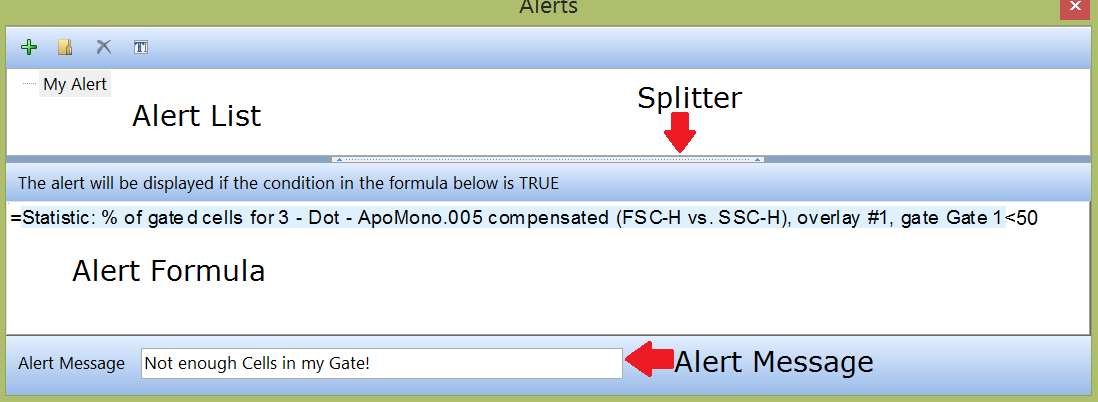
Figure 10.14 Docked Alert Window
7. Enter or edit the formula:
•Start the formula by entering an "=" sign.
•Right-click next to "=" sign in the field.
•Choose Insert Token from the pop-up menu.
•Choose a token from the Insert a Token dialog.
•Modify the formula so that it evaluates to a TRUE or FALSE statement. You can use any of the operators and functions that are available for custom tokens.
Examples of two correct formulas are shown in Figure 10.16:
oExample 1 is a formula that will evaluate whether the % of Gated cells for Gate 1 in Dot plot #1, is greater than 20.
oExample 2 is a formula that will evaluate whether the % of Gated cells for Gate 1 in Dot plot #1, is greater than 20 AND whether the number of Events in the Upper Left Quadrant of Plot #2 is smaller than 1000.
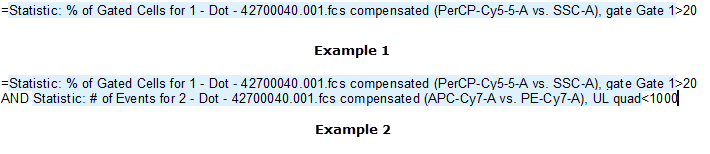
Figure 10.15 Examples of Alert Formulas
7. Enter the text to be shown if the alert condition is met in the Alert Message edit field at the bottom of the window.